> For the complete documentation index, see [llms.txt](https://docs.feathery.io/llms.txt). Markdown versions of documentation pages are available by appending `.md` to page URLs; this page is available as [Markdown](https://docs.feathery.io/platform/document-autofill-and-signatures/autofill-document-templates/powerpoint-autofill.md).
# PowerPoint Autofill
Automatically fill and route PowerPoint templates from your form or AI data.
Feathery allows users to generate PowerPoint presentations from templates (in `.pptx` format) from their form submission or AI data.
Templates can contain variables via double-curly brace syntax, e.g. `{{Field1}}`. When the document is generated, Feathery will replace variables with the corresponding field value.
{% hint style="warning" %}
Fields can only contain **letters, numbers, and underscores** when being used in PowerPoint Autofill. Other characters may cause the generation to fail by reading the field name as a formula instead.
{% endhint %}
Feathery supports [Jinja templating logic](https://documentation.bloomreach.com/engagement/docs/jinja-syntax) for advanced use cases such as conditionally showing/hiding sections, generating sections in a loop, formulas, and more.
## Conditional Logic
Feathery supports conditionally including and excluding different slides and shapes in the PowerPoint presentation based on field values.
#### Hiding Slides
To conditionally hide a slide, place a text box with the following syntax anywhere within a slide:
```
feathery.hide_slide = {{ some_expression }}
```
`some_expression` can be any jinja expression. If expression evaluates to `True` the slide will be removed from the rendered document.
#### Hiding Shapes
To conditionally hide a shape, place the following syntax at the top of the shape:
```
feathery.hide_shape = {{ some_expression }}
```
`some_expression` can be any jinja expression. If expression evaluates to `True` the shape will be removed from the rendered document.
#### Inline Conditional Blocks
Feathery supports Jinja `{% %}` block tags directly within text boxes to conditionally show or hide content within a shape.
```
{% if Plan Year %}{{ Plan Year }}{% endif %}
```
```
{% if score >= 90 %}Excellent{% elif score >= 70 %}Good{% else %}Needs improvement{% endif %}
```
You can also loop over a list field to repeat content:
```
{% for item in line_items %}{{ item }} {% endfor %}
```
Any Jinja expression is supported, including comparisons, string equality, and nested conditions.
#### Paragraph-Level Block Tags
For multi-paragraph loops or conditionals where each block tag should occupy its own paragraph (preserving formatting on the content rows), use `{%p %}` instead of `{% %}`:
```
{%p for item in line_items %}
{{ item.name }} {{ item.price }}
{%p endfor %}
```
Each `{%p %}` paragraph is treated as a pure block tag and removed from the output — only\
the content paragraphs in between are kept. This preserves the rich formatting of\
content rows across loop iterations.
## Rich Text Formatting
You can apply inline formatting to text (including variable values) using backslash-tag syntax. Tags can be nested.
| Syntax | Effect |
| ------------------- | ---------------------- |
| \bold(text) | Bold |
| \italic(text) | Italic |
| \underline(text) | Underline |
| \color.RRGGBB(text) | Font color (hex, no #) |
Example:
```
\bold(\color.FF0000(Warning:)) \italic(please review this section.)
```
Tags can wrap variable placeholders as well:
```
\bold({{FieldName}})
```
## Add Tables
Feathery supports adding tables with a flexible number of rows/columns based on the field used in the following syntax:
```
feathery.add_table = FieldID
```
For example if you have the following field
```
my_table = [
["HEADER 1", "HEADER 2", "HEADER 3", "HEADER 4"],
["a", "b", "c"],
["d", "e", "f", "f2"],
["g", "h", "i"]
]
```
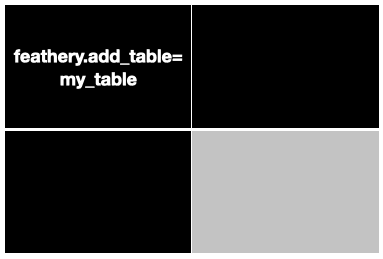
and you insert a table placeholder in your document template like this:
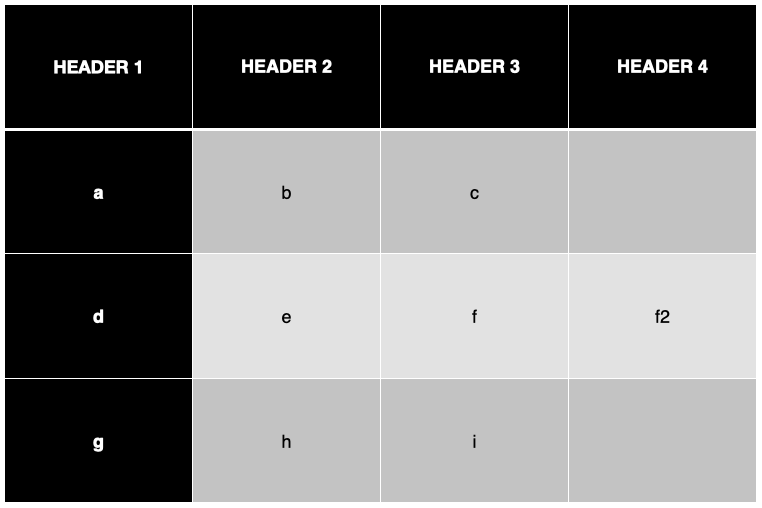
where the upper-left cell contains just the expression `feathery.add_table = my_table` you can expect the final table to expand to contain all of the rows/columns and retain the text and table styles. In this example the final table will look like this:
If your field `my_table` does not exist or is empty the table will be removed from the final rendered document.
#### Cell Background Color
Inside table cells, you can set the cell's background color using:
```
\bgcolor.RRGGBB(cell content)
```
The hex color applies to the entire cell background. This tag can be combined with other rich text tags:
```
\bgcolor.FFD700(\bold(Total))
```
## Add Charts
Feathery supports dynamically populating charts from a field value. Place a chart in your template and set its title to:
```
feathery.add_chart = FieldID
```
The field value must be a JSON object with the following structure:
```json
{
"title": "My Chart",
"type": "bar",
"categories": ["Q1", "Q2", "Q3", "Q4"],
"series": [
{
"name": "Revenue",
"values": [100, 200, 150, 300],
"color": "#FF0000"
}
]
}
```
| Field | Required | Description |
| ------------ | -------- | --------------------------------------------------------------------------------------------------------------------------------------------------------------------- |
| `title` | No | Overrides the chart title in the rendered output |
| `type` | No | Overrides the chart type. Supported values: `pie`, `bar`, `column`, `line`, `area`, `doughnut`, `scatter`. If omitted, the chart type from the template is preserved. |
| `categories` | Yes | List of category labels for the x-axis |
| `series` | Yes | List of series objects (see below) |
Each series object supports:
| Field | Required | Description |
| -------- | -------- | ------------------------------------------------------------------------------------------------------------------------------------------- |
| `name` | Yes | Series label shown in the legend |
| `values` | Yes | List of numeric data points |
| `color` | No | Hex color (e.g. `#FF0000`) applied to the entire series. For line charts this colors the line; for bar/column/pie it fills all data points. |
| `colors` | No | List of per-point hex colors. Overrides `color` if provided. |
If the field does not exist or is empty, the chart shape will be removed from the rendered document.
***
## Embed Images
To embed an image into the document that was pulled from a form submission, input the following syntax within a shape's text:
```
__Image__
```
`FileUploadFieldId` is the ID of the file upload field that the image to embed was uploaded to. `Width` is the width of the embedded image, in millimeters. `Height` is the height of the embedded image, in millimeters. If you set width or height to `0`, the image width or height will be set to the size of the shape. In order to preserve the aspect ratio of the image you can set one side as described before and the other side to `-1` which will auto-adjust that side to keep the correct aspect ratio. If you set both sides to `-1` the image will scale to fit the shape while keeping the correct aspect ratio.
## Speaker Notes
Variables and Jinja expressions in slide speaker notes are also replaced during autofill, using the same `{{FieldID}}` syntax.
## Automatic URL Hyperlinking
If a rendered cell value contains a URL (starting with http\:// or https\://), Feathery automatically converts it into a clickable hyperlink in the output file.
## Document Workflow
Once you've mapped your document, you can integrate it into your existing workflow for filling and routing to the desired location. For example, you can include your PowerPoint as an attachment in a custom [email integration](https://feathery.io/integrations/email) to be sent to recipients.
---
# Agent Instructions
This documentation is published with GitBook. GitBook is the documentation platform designed so that both humans and AI agents can read, navigate, and reason over technical content effectively. Learn more at gitbook.com.
## Querying This Documentation
If you need additional information that is not directly available in this page, you can query the documentation by asking a question.
Perform an HTTP GET request on the following URL with the `ask` and `goal` query parameters:
```
GET https://docs.feathery.io/platform/document-autofill-and-signatures/autofill-document-templates/powerpoint-autofill.md?ask=&goal=
```
`ask` is the immediate question: it should be specific, self-contained, and written in natural language.
`goal` is what the user is ultimately trying to achieve, the reason they need the answer. Sharing it helps GitBook give you a better, more relevant answer. A goal is most helpful when it describes the outcome the user wants rather than restating the question. For example, with `ask=how do I create an API token`, a goal like `automate deployments from our CI pipeline` lets GitBook tailor the answer to that use case.
The response will contain a direct answer to the question and relevant excerpts and sources from the documentation.
Use this mechanism when the answer is not explicitly present in the current page, you need clarification or additional context, or you want to retrieve related documentation sections.