> For the complete documentation index, see [llms.txt](https://docs.feathery.io/llms.txt). Markdown versions of documentation pages are available by appending `.md` to page URLs; this page is available as [Markdown](https://docs.feathery.io/platform/build-forms/elements/basic/table.md).
# Table
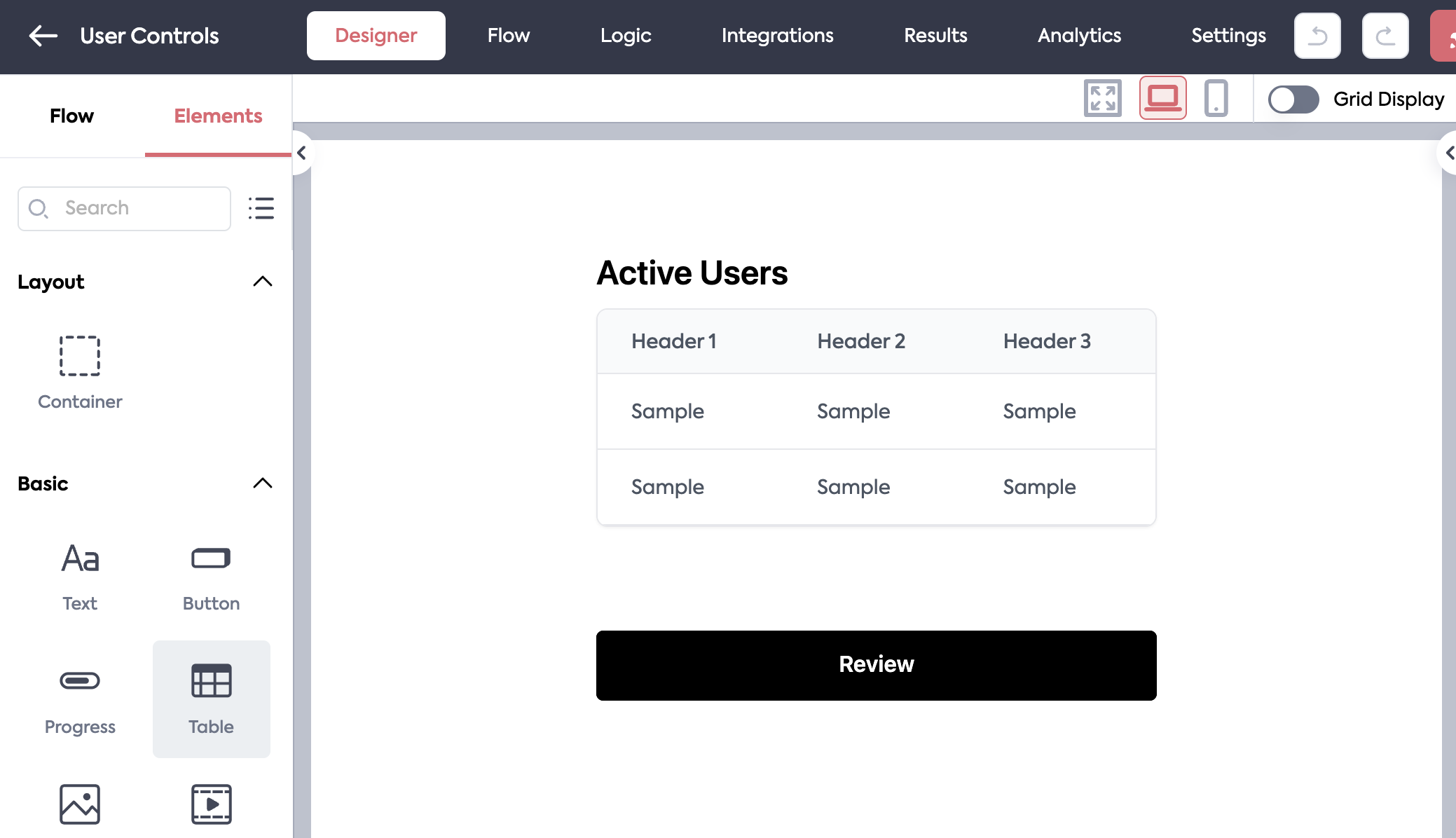
The Table element allows you to display repeated fields and hidden fields in an organized layout.
The `Table` element displays field data as columns in a table layout.
### Configuring Columns
Columns define what data is displayed in your table. Each column has:
* **Header**: The display name shown at the top of the column
* **Field Mapping**: The data field from your data source that populates this column
{% hint style="info" %}
Tables handle repeated fields automatically. If using hidden fields, make sure to use an array value to render each cell correctly.
{% endhint %}
### Configuring Actions
Actions are interactive buttons that appear at the end of each row, allowing users to perform operations on that row's data.
**To add/edit actions:**
1. Open the table's property panel
2. Navigate to the **Actions** section
3. Click "Add Action" to create a new action
4. Name your action (e.g., "View Details", "Edit", "Delete")
1. This name is displayed to users and used to identify the action in code.
**Action Display Behavior:**
* **1 action**: Displayed as an individual button
* **2 or more actions**: Consolidated into an overflow menu (⋮) to save space
**Using Actions:**
See the Handling Row Click Events section below on instructions for using actions to run custom logic.
### Table Features
Enable or disable these features in the **Table Features** section:
* **Search Bar**: Adds a search input to filter table rows
* **Sort Options**: Allows users to sort columns by clicking column headers
* **Pagination**: Splits data across multiple pages with page controls
### Configuring Table Data
#### Repeated Fields
Tables work out of the box with repeated fields. Simply map your repeated field to the column and the table will display each value as a cell in a row.
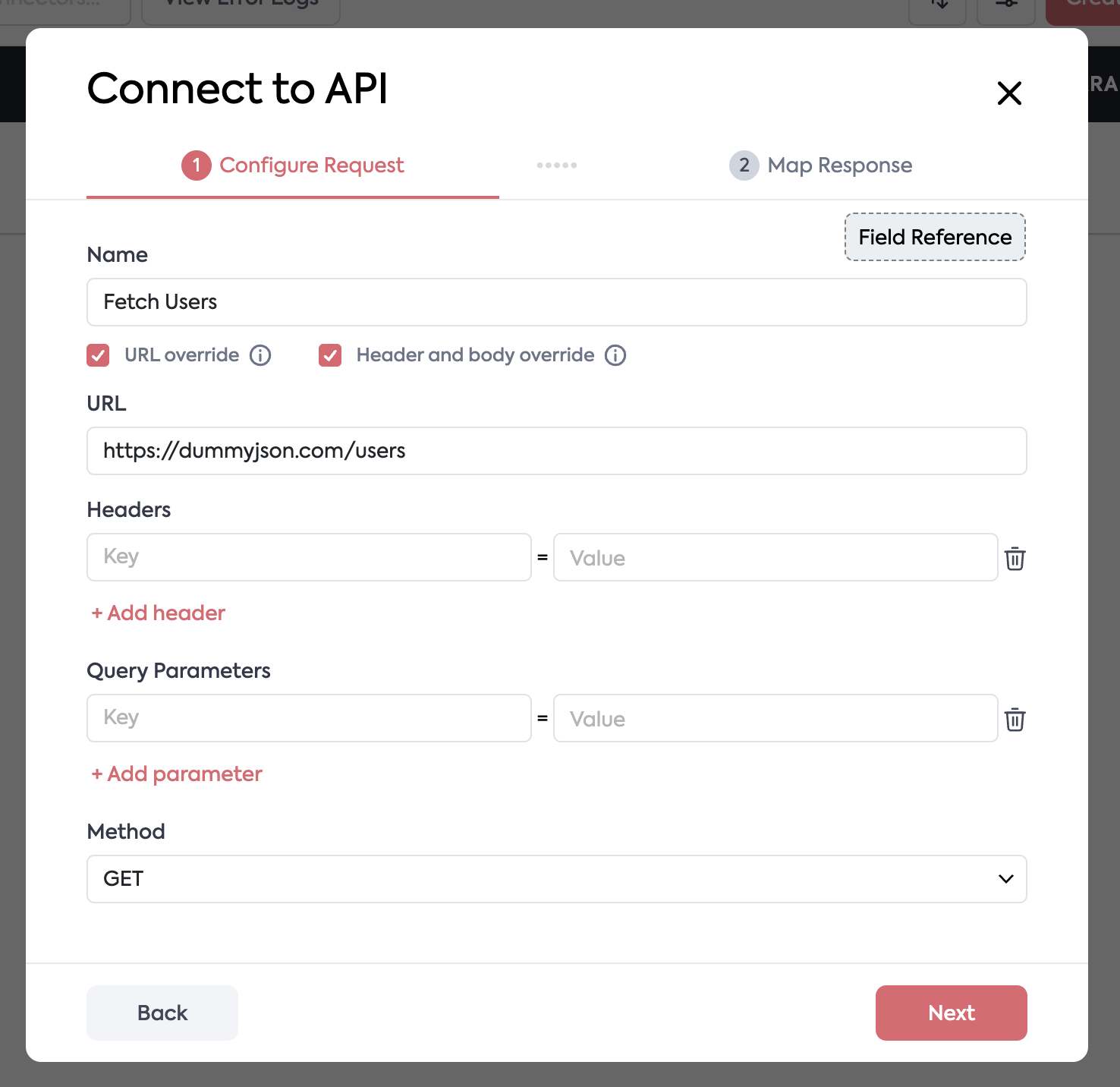
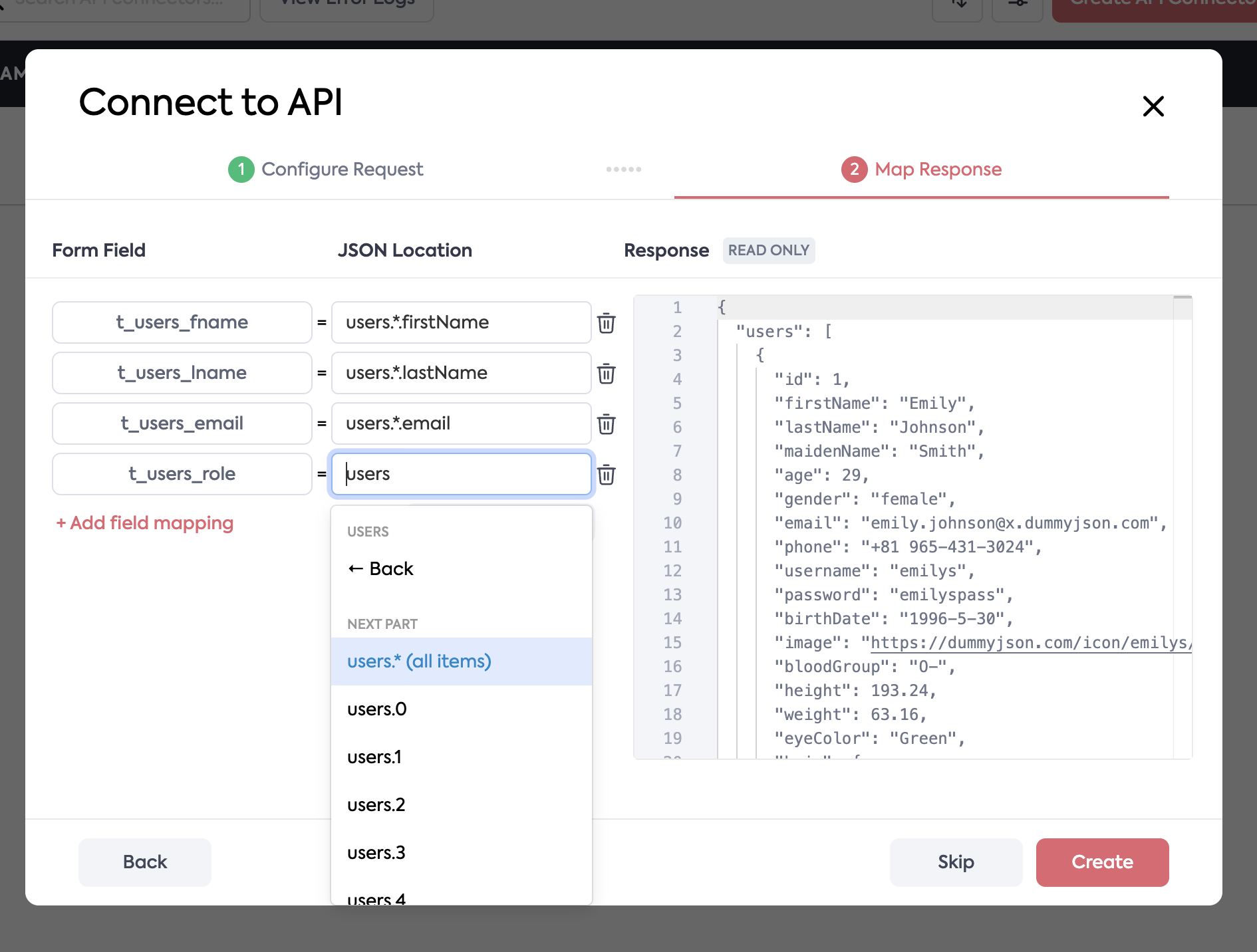
#### API Connectors
Using the JSON mapping, you can map data to repeated fields and/or hidden fields. If you use the `*` notation, all data from the response will be added to the field value.
#### Custom Logic
You can use custom logic rules to assign repeated fields or hidden fields values. If you assign a hidden field an array of strings, it will display on the table.
```
table_field.value = ["value 1", "value 2", "value 3"];
```
### Editing Cell Values
When a table is configured to be editable, users can update cell values directly inline, the menu next to the cell is deprecated.
#### Editing a Cell
* **Click a cell** to start editing it. The cell turns into a text input pre-filled with its current value.
* **Enter** saves the change and closes the editor.
* **Shift+Enter** inserts a new line within the cell instead of saving.
* **Escape** cancels editing and discards any changes.
* **Clicking outside** the cell (blur) saves the current value.
#### Keyboard Navigation
While editing, use **Tab** and **Shift+Tab** to move between editable cells without reaching for the mouse:
* **Tab** saves the current cell and moves to the next editable cell to the right. At the end of a row, it wraps to the first cell of the next row.
* **Shift+Tab** saves and moves to the previous editable cell, wrapping to the end of the previous row.
* Navigation stops at the last editable cell (Tab) or the first editable cell (Shift+Tab) rather than wrapping around the whole table; your value is still saved.
### Handling Action Events
When a user clicks an action button in a table row, you can capture that interaction and trigger custom logic using the `feathery.trigger` object.
#### Available Trigger Data
When a row action is clicked, the following data is added to `feathery.trigger`:
* **`rowIndex`**: The index of the clicked row (accounts for pagination)
* **`rowData`**: An object containing the data from the clicked row in `{column header: value}` format
* **`action`**: The name of the clicked action (if applicable)
* **`columnIndex`**: The index of the clicked column.
* **`columnKey`**: The field key mapped to the clicked column.
* **`columnName`**: The header name of the clicked column.
> **Note:** `columnIndex`, `columnKey`, and `columnName` are set only when a user clicks a specific data cell. They are absent for action-button clicks and row-level clicks.
#### Setting Up Logic Rules
1. Create a new Logic Rule with trigger type **"Element Click"**
2. Select your table element as the trigger element
3. Access the trigger data in your conditions or actions using:
* `feathery.trigger.rowIndex`
* `feathery.trigger.rowData`
* `feathery.trigger.action`
* `feathery.trigger.columnIndex`
* `feathery.trigger.columnKey`
* `feathery.trigger.columnName`
### Advanced Usage
#### Row click events
You can trigger logic on row click by checking for the absence of `action` in `feathery.trigger` . If there is no action property, then the click was on the row and not an action button. Use this for step navigation or other use cases.
{% hint style="info" %}
If using row click actions, apply custom styling to the table to signify that the row is clickable to the user.\
\
Add the following custom html to a container on your step:
```
```
{% endhint %}
#### Row Striping
Custom html can be used to add stripes to your rows:
```
```
#### Cell click events
In addition to row-level clicks, you can respond to a click on a specific cell. When a data cell is clicked, `feathery.trigger` includes the column the user clicked, so you can branch your logic on which column was selected:
* `feathery.trigger.columnIndex` — the index of the clicked column
* `feathery.trigger.columnKey` — the field key mapped to that column
* `feathery.trigger.columnName` — the column's header name
Distinguish the three click types in your logic rule:
* **Action click** — `feathery.trigger.action` is present
* **Cell click** — no `action`, but `feathery.trigger.columnKey` (or `columnIndex`) is present
* **Row click** — neither `action` nor `columnKey` is present
### Legacy Tables
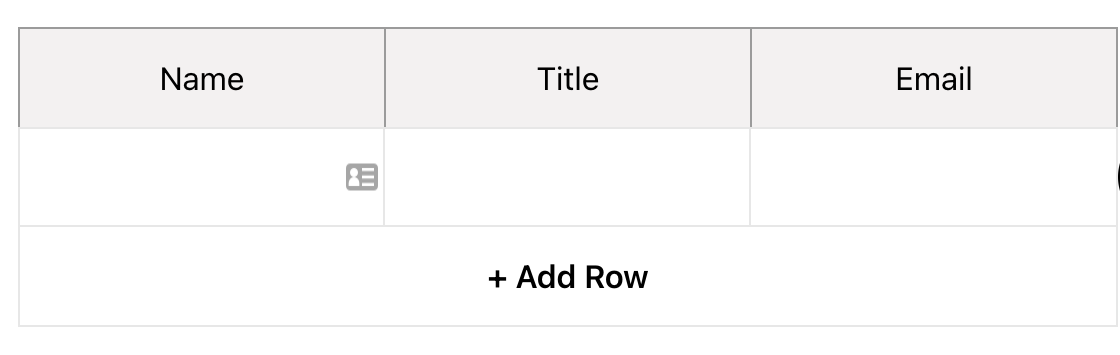
It's possible to build your own table layout using a combination of [containers](/platform/build-forms/elements/basic/container.md), [fields](/platform/build-forms/elements/fields.md), and (optionally) [container repeat logic](/platform/build-forms/logic/dynamically-repeating-containers.md). This method is more customizable than the table element and allows you to display fields and elements inside of cells.
An example of a simple table built on Feathery
---
# Agent Instructions
This documentation is published with GitBook. GitBook is the documentation platform designed so that both humans and AI agents can read, navigate, and reason over technical content effectively. Learn more at gitbook.com.
## Querying This Documentation
If you need additional information that is not directly available in this page, you can query the documentation by asking a question.
Perform an HTTP GET request on the following URL with the `ask` and `goal` query parameters:
```
GET https://docs.feathery.io/platform/build-forms/elements/basic/table.md?ask=&goal=
```
`ask` is the immediate question: it should be specific, self-contained, and written in natural language.
`goal` is what the user is ultimately trying to achieve, the reason they need the answer. Sharing it helps GitBook give you a better, more relevant answer. A goal is most helpful when it describes the outcome the user wants rather than restating the question. For example, with `ask=how do I create an API token`, a goal like `automate deployments from our CI pipeline` lets GitBook tailor the answer to that use case.
The response will contain a direct answer to the question and relevant excerpts and sources from the documentation.
Use this mechanism when the answer is not explicitly present in the current page, you need clarification or additional context, or you want to retrieve related documentation sections.