> For the complete documentation index, see [llms.txt](https://docs.feathery.io/llms.txt). Markdown versions of documentation pages are available by appending `.md` to page URLs; this page is available as [Markdown](https://docs.feathery.io/platform/document-intelligence/supported-document-types/audio-extractions.md).
# Audio Extractions
Fill out Feathery forms in real time by allowing our bot to join your meetings
Real time transcript processing from the meeting and processing the final transcript post-meeting are supported.
### Getting Started
Create an Audio Extraction by going to the AI tab of your account and clicking **Create Extraction**.
1. Give your extraction a name
2. Select **Live Conversation** as the format
### Set Up Queries
Once the extraction is created, under the **Queries** tab you can add queries to specify what information to extract from your conversations.
Use AI-driven natural language similar to [Free-form Extractions](/platform/document-intelligence/supported-document-types/free-form-extractions.md) to query your conversations for information. You can add multiple queries to extract different pieces of data from the same conversation.
> **Example query:** "What is the name of the first speaker?"
**Configuration Fields:**
* **Query** (Required) - The natural language question you want to extract from the conversation
* **Save To** (Optional) - The field where the extracted information should be stored in your form
For each query, you can specify a **Save To** field to determine where the extracted information should be stored in your form.
### Managing Queries
* Use the **Add Query** button to create additional extraction queries as needed
* Each query can be expanded or collapsed using the arrow controls
* Use the trash icon to delete unwanted queries
* Queries can be reordered using the drag handles
### Join Your Meeting
You can trigger audio extraction in two ways:
#### Method 1: Direct Meeting Join
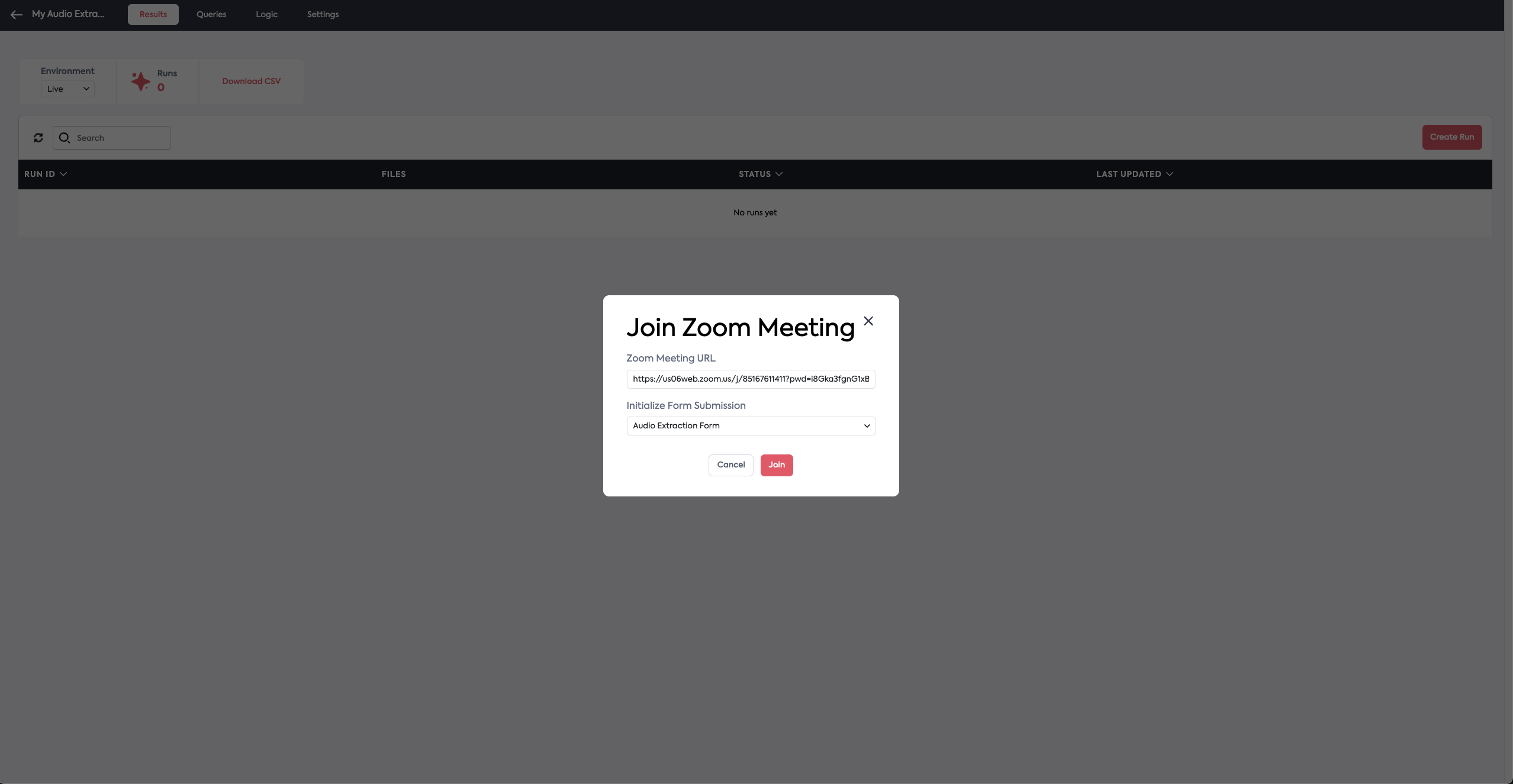
After setting up your extraction, you can have the Feathery bot join your meeting to begin real-time audio processing.
1. Click the **Create Run** button to bring up the meeting setup
2. Add the meeting link in the **Zoom Meeting URL** field
3. Select the Feathery form you want to populate from the **Initialize Form Submission** dropdown
4. Click **Join** to start the extraction
#### Method 2: Join Through a Form
You can also trigger audio extraction through a form button action, allowing users to submit meeting URLs directly through your form.
**Form Setup:**
1. Add a text field to your form for the meeting URL (e.g., "Meeting URL")
2. Add a button element to trigger the extraction
3. Configure the button's action:
* **Action Type**: AI Extraction
* **Run Extraction**: Select your audio extraction (e.g., "My Audio Extraction")
* **Meeting URL**: Map to your meeting URL field (e.g., `meeting_url`)
When users click the button, the Feathery bot will automatically join the meeting using the URL they provided and begin extracting information based on your configured queries.
Once the bot joins your meeting, you can proceed as usual with your conversation. The corresponding form will be opened and will automatically fill with information as the bot extracts data based on your configured queries mapped to those form fields.
---
# Agent Instructions
This documentation is published with GitBook. GitBook is the documentation platform designed so that both humans and AI agents can read, navigate, and reason over technical content effectively. Learn more at gitbook.com.
## Querying This Documentation
If you need additional information that is not directly available in this page, you can query the documentation dynamically by asking a question.
Perform an HTTP GET request on the current page URL with the `ask` query parameter, and the optional `goal` query parameter:
```
GET https://docs.feathery.io/platform/document-intelligence/supported-document-types/audio-extractions.md?ask=&goal=
```
`ask` is the immediate question: it should be specific, self-contained, and written in natural language.
`goal` is optional and describes the broader end goal you are ultimately trying to accomplish on behalf of the user. GitBook uses it to tailor the answer towards what is most useful for that goal.
The response will contain a direct answer to the question and relevant excerpts and sources from the documentation.
Use this mechanism when the answer is not explicitly present in the current page, you need clarification or additional context, or you want to retrieve related documentation sections.